Serve Rerun recordings publicly with Cloudflare R2
Rerun is an SDK for logging and visualizing multimodal data — images, point clouds, bounding boxes, time series — with a scrubable timeline. The .rrd recording format captures an entire session that can be replayed in the Rerun web viewer.
The web viewer loads .rrd files over HTTPS, which means your recordings need to be publicly accessible with the correct CORS headers. This tutorial walks through storing .rrd files on Cloudflare R2 and serving them to app.rerun.io.
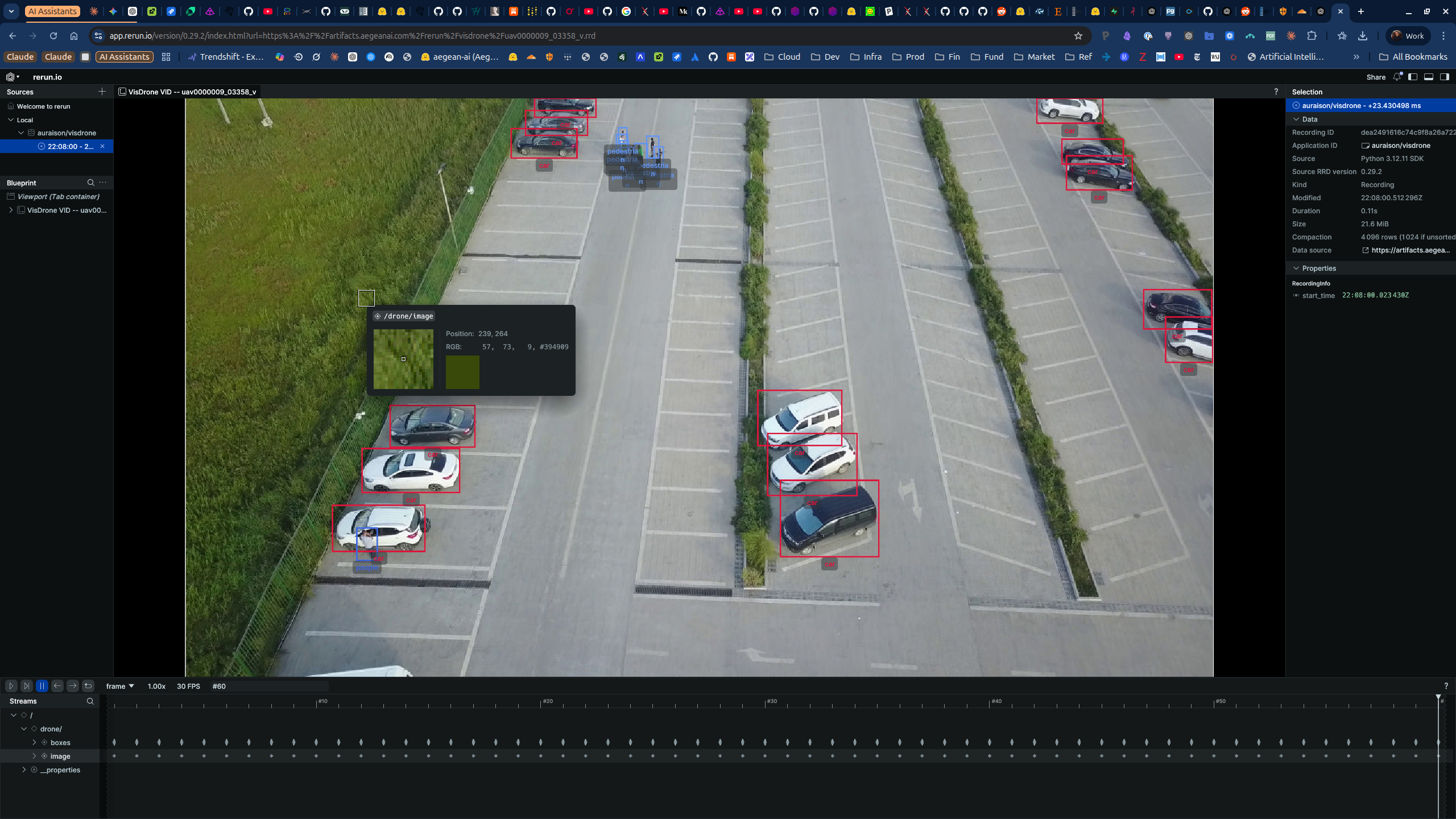
VisDrone VID sequence uav0000009_03358_v — 60 frames with colour-coded bounding boxes for cars, pedestrians, and other objects, streamed from Cloudflare R2 to the Rerun web viewer.
Architecture
Notebook execution
    │
    ▼
/tmp/visdrone_demo.rrd
    │
    ├──► s3://warehouse/artifacts/rerun/...    (TrueNAS MinIO — archival)
    │
    └──► Cloudflare R2: auraison-artifacts     (public CDN)
              │
              ▼
         https://artifacts.aegeanai.com/rerun/visdrone/sequence.rrd
              │
              ▼
         app.rerun.io/version/0.29.2/?url=<encoded-public-url>
The .rrd is stored in two places: a private lakehouse (TrueNAS MinIO) for archival and durability, and Cloudflare R2 for public web viewer access. R2 is ideal here — S3-compatible API, zero egress fees, and built-in CDN with custom domain support.
Prerequisites
- A Cloudflare account with R2 enabled
- A domain on Cloudflare DNS (for the custom domain)
- Python environment with
boto3andrerun-sdkinstalled - An
.rrdfile to upload (see our VisDrone Rerun notebook for how to generate one)
Step 1 — Create an R2 bucket
In the Cloudflare dashboard:
- Navigate to R2 Object Storage
- Click Create bucket
- Name it (e.g.
auraison-artifacts) - Select a location close to your users (e.g. Eastern North America)
Or via the Cloudflare API / Wrangler CLI:
npx wrangler r2 bucket create auraison-artifacts
Step 2 — Connect a custom domain
A custom domain gives you clean URLs (artifacts.aegeanai.com/...) instead of the default R2.dev subdomain, and avoids R2.dev rate limits.
- In the R2 bucket Settings tab, find Custom Domains
- Click + Add and enter your subdomain (e.g.
artifacts.aegeanai.com) - Cloudflare automatically provisions the DNS record and TLS certificate
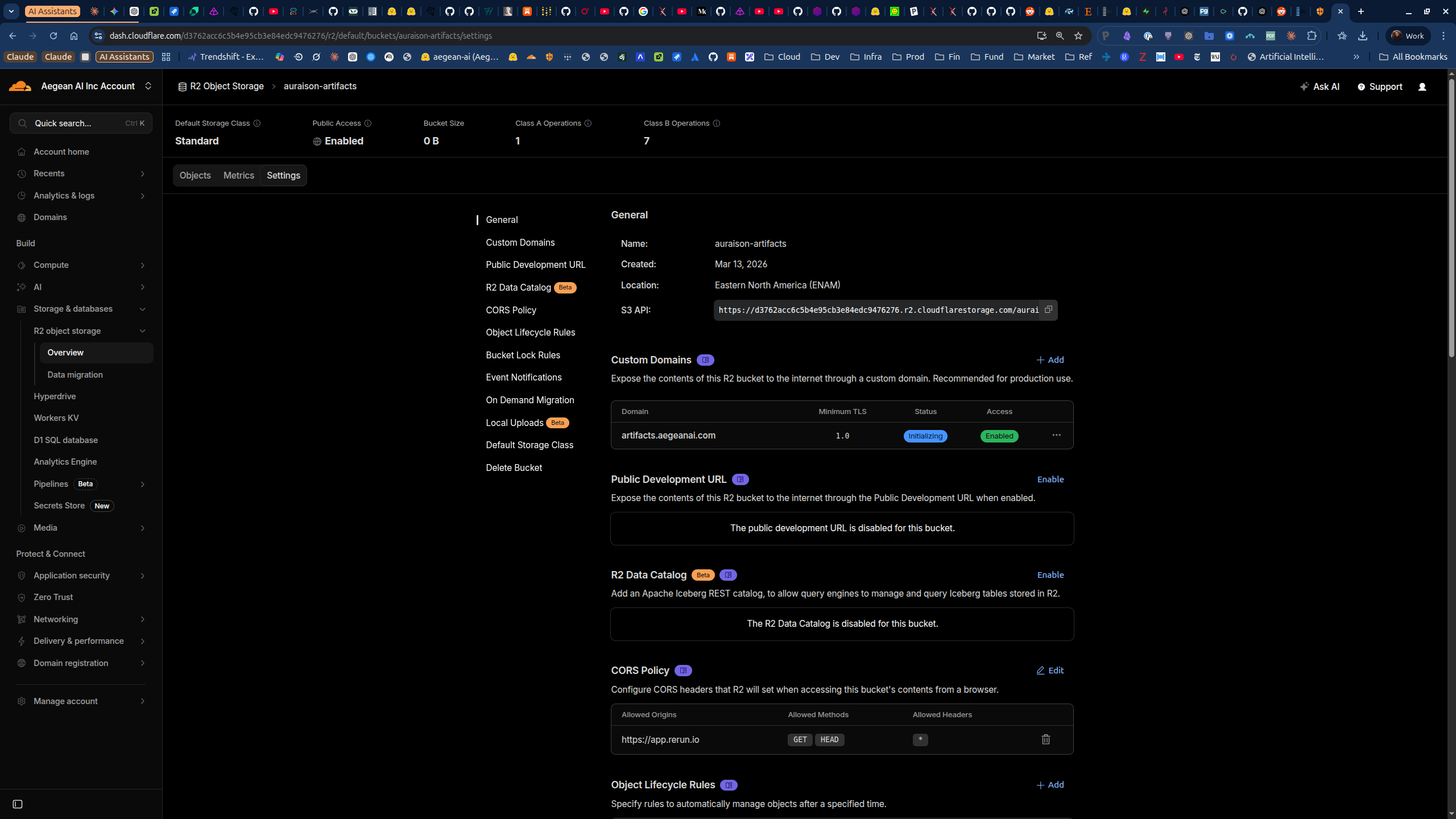
The status will show Initializing briefly, then switch to Active. Public Access should show Enabled.
Step 3 — Configure CORS for Rerun
The Rerun web viewer at app.rerun.io fetches .rrd files via the browser using fetch(). Without CORS headers, the browser blocks the request.
In the R2 bucket Settings, scroll to CORS Policy and click Edit:
[
  {
    "AllowedOrigins": ["https://app.rerun.io"],
    "AllowedMethods": ["GET", "HEAD"],
    "AllowedHeaders": ["*"],
    "ExposeHeaders": ["Content-Length", "Content-Type"],
    "MaxAgeSeconds": 86400
  }
]
This allows the Rerun viewer to read your .rrd files while blocking other origins.
If you also embed Rerun in your own docs site (e.g. via iframe), add your docs domain to AllowedOrigins as well.
Step 4 — Bypass Cloudflare Access (if applicable)
If your domain is behind Cloudflare Zero Trust (Access), requests to the R2 bucket will be redirected to a login page — breaking the Rerun viewer.
You need to create a Bypass policy so unauthenticated clients can fetch artifacts:
- In Zero Trust → Access → Applications, find (or create) the application for your artifacts domain
- Go to the Policies tab
- Click + Create new policy:
- Policy name:
public-artifacts-bypass - Action: Bypass
- Include: Everyone
- Policy name:
- Drag the Bypass policy to position 1 (above any Allow policies — order matters)
- Click Save application
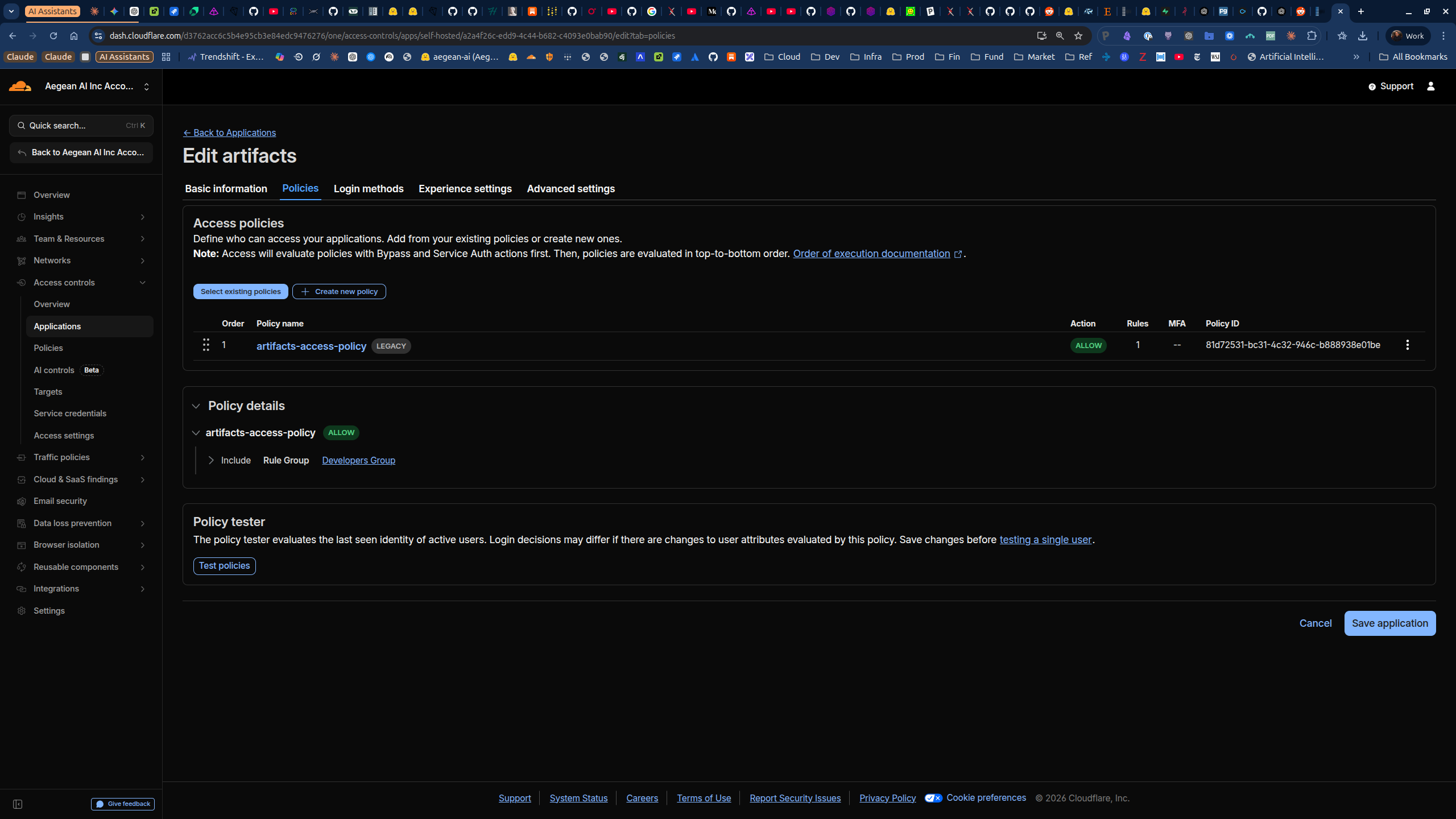
Access policies are evaluated top-to-bottom. The Bypass must be first so it short-circuits the Allow policy that would otherwise require login.
Step 5 — Create R2 API credentials
To upload files programmatically via the S3 API, create an R2 API token:
- Go to R2 Object Storage → Manage R2 API Tokens
- Click Create API Token
- Configure:
- Name:
artifacts-upload - Permissions: Object Read & Write
- Scope: Specific bucket →
auraison-artifacts
- Name:
- Save the Access Key ID and Secret Access Key
Add them to your environment (e.g. .env):
R2_ENDPOINT=https://<account-id>.r2.cloudflarestorage.com
R2_ACCESS_KEY=<access-key-id>
R2_SECRET_KEY=<secret-access-key>
R2_PUBLIC_DOMAIN=artifacts.aegeanai.com
Your Cloudflare account ID is visible in the dashboard URL or via the API.
Step 6 — Upload an .rrd file
With boto3 pointing at the R2 endpoint:
import boto3
from botocore.config import Config

r2 = boto3.client(
    "s3",
    endpoint_url=os.environ["R2_ENDPOINT"],
    aws_access_key_id=os.environ["R2_ACCESS_KEY"],
    aws_secret_access_key=os.environ["R2_SECRET_KEY"],
    config=Config(signature_version="s3v4"),
    region_name="auto",
)

r2.upload_file(
    "/tmp/visdrone_demo.rrd",
    "auraison-artifacts",
    "rerun/visdrone/uav0000009_03358_v.rrd",
    ExtraArgs={"ContentType": "application/x-rerun"},
)
Setting ContentType to application/x-rerun helps the Rerun viewer identify the file correctly.
Verify the upload:
curl -sI https://artifacts.aegeanai.com/rerun/visdrone/uav0000009_03358_v.rrd
You should see HTTP/2 200 with content-type: application/x-rerun.
Step 7 — Open in the Rerun web viewer
The Rerun web viewer accepts an .rrd URL as a query parameter. The viewer version must match the SDK version used to generate the recording — otherwise you get an lz4 decode error.
Check your SDK version:
import rerun
print(rerun.__version__)  # e.g. 0.29.2
Construct the viewer URL:
from urllib.parse import quote

public_url = "https://artifacts.aegeanai.com/rerun/visdrone/uav0000009_03358_v.rrd"
version = "0.29.2"  # must match rerun SDK version

viewer_url = f"https://app.rerun.io/version/{version}/index.html?url={quote(public_url, safe='')}"
print(viewer_url)
Open the URL in a browser and you should see your recording with the full Rerun UI — timeline scrubbing, entity tree, spatial view, and all logged data.
Version mismatch pitfall: If you see lz4 error: literal is out of bounds of the input, the viewer version doesn't match the SDK that wrote the .rrd. Always pin the viewer URL version to your installed rerun package version.
Step 8 — Embed in documentation
To embed the Rerun viewer in a Mintlify docs page or any website:
<iframe
  src="https://app.rerun.io/version/0.29.2/index.html?url=https%3A%2F%2Fartifacts.aegeanai.com%2Frerun%2Fvisdrone%2Fuav0000009_03358_v.rrd"
  width="100%"
  height="640px"
  style="border: none; border-radius: 8px;"
/>
Automating uploads with the lakehouse helper
In the Auraison data plane, we built a helper (lakehouse/artifacts.py) that uploads to both the archival warehouse and R2, registers the artifact in the DuckLake catalog, and returns the viewer URL — all in one call:
from lakehouse.artifacts import upload_artifact

result = upload_artifact(
    local_path="/tmp/visdrone_demo.rrd",
    dataset_name="visdrone",
    artifact_type="rerun_recording",
    artifact_name="uav0000009_03358_v.rrd",
    source_notebook="notebooks/rerun_visdrone_demo.ipynb",
    metadata={"sequence": "uav0000009_03358_v", "frames": 60, "boxes": 12531},
)

print(result["rerun_viewer_url"])
# https://app.rerun.io/version/0.29.2/index.html?url=https%3A%2F%2Fartifacts.aegeanai.com%2F...
The catalog registration creates lineage from dataset to notebook to artifact, making recordings discoverable via SQL queries against the DuckLake catalog.
Summary
| Step | What | Why |
|---|---|---|
| R2 bucket | auraison-artifacts | S3-compatible, zero egress CDN |
| Custom domain | artifacts.aegeanai.com | Clean URLs, no rate limits |
| CORS | Allow app.rerun.io GET/HEAD | Browser fetch from viewer |
| Access bypass | Bypass policy at position 1 | Skip Zero Trust login for public files |
| API token | Scoped to bucket, Object R/W | Programmatic uploads via boto3 |
| Upload | application/x-rerun content type | Correct MIME for .rrd files |
| Viewer URL | Version must match SDK | Prevents lz4 decode errors |